Your 2011 iMac still has work in it: here is what to do with it
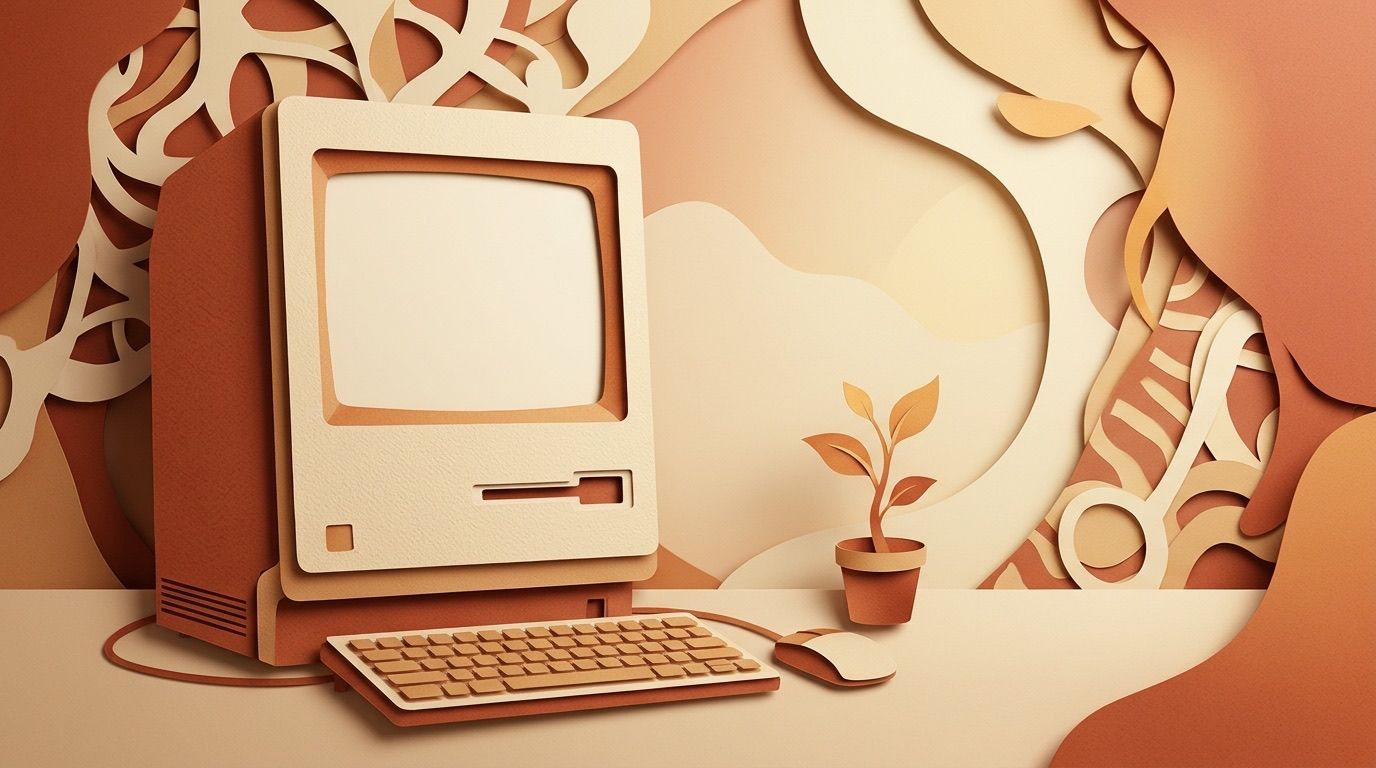
The aluminum body, the big bright screen, the little magnetic door over the memory: the 2011 iMac was a lovely machine. If yours is sitting in a closet waiting for the recycling run, hold off. With free software and an afternoon, it can do real work again.
What you are working with
These iMacs were well built, and the parts still hold up for a lot of jobs.
| 21.5-inch | 27-inch | |
|---|---|---|
| Screen | 1920 x 1080 | 2560 x 1440 |
| Processor | Quad-core Intel Core i5 or i7 | Quad-core Intel Core i5 or i7 |
| Memory | 4 GB as standard, up to 16 GB | 4 GB as standard, up to 16 GB |
| Graphics | AMD Radeon HD 6750M or 6770M | AMD Radeon HD 6770M or 6970M |
| Storage | 500 GB or 1 TB hard drive, optional SSD | 1 TB hard drive, optional SSD |
Two things matter most. The processor is 64-bit and quad-core, which modern software needs. And the screen is still sharp and good-looking. The weak spot is the original spinning hard drive, and that is cheap to fix (more on that below).
Things it can become
- A media server. With Plex or Kodi, it can hold your movies, music and photos and stream them to your TV, phone or tablet. Add external drives when you run out of room.
- A retro game station. RetroArch on Linux (or OpenEmu if you stay on macOS) plays games from old consoles, from the NES and Sega Genesis to the PlayStation and Dreamcast, on a big screen.
- A safe place to learn Linux. Install Ubuntu or Linux Mint and experiment with nothing at risk on your main computer.
- A home server. For the more adventurous: a file server, a web server, or your own private cloud with Nextcloud. It is a good way to learn networking.
- A smart home hub. Home Assistant runs your lights, thermostats, cameras and sensors from one place, and keeps your data in your house.
- A one-job computer. A writing desk with no distractions, a video-call station, or a kitchen computer for recipes and music.
- A photo frame or art display. Let that screen show off your photos or a rotating set of artwork. Build a wooden frame around it if you like.
- A smart mirror, for the brave. It means taking the polarizing film off the screen and mounting it behind a two-way mirror, so it can show the time, weather and news. This is a take-it-apart project, not an afternoon one.
Why Linux
A 2011 iMac can no longer run current macOS, so it stops getting security updates. Linux is free, still updated, and many versions run well on older machines. It is what makes most of the projects above possible.
Linux comes in many versions, called distributions. These suit a 2011 iMac:
- Ubuntu (the LTS release) or Linux Mint for most people. Both are easy to install and have big, helpful communities. Mint will feel familiar if you have used Windows.
- Zorin OS or elementary OS if you want something that looks and feels more like a Mac.
- Lubuntu if you want the lightest option, for a machine with little memory.
- ChromeOS Flex if all you want is a web browser, like a Chromebook.
One point that often confuses people: Raspberry Pi is a small separate computer, not something you install. Its operating system does not run on an iMac. Everything here uses an ordinary Linux distribution on the iMac itself.
How to install it
Back up anything you want to keep first. Installing Linux this way erases the drive.
- Download the 64-bit desktop version of your chosen distribution from its official site. It is one file ending in .iso.
- Use a free tool such as balenaEtcher to write that file to a USB stick of at least 8 GB.
- Plug the stick into the iMac, restart, and hold the Option key straight away. A menu of startup disks appears.
- Pick the USB stick (it is often labelled “EFI Boot”).
- Most distributions let you try Linux before installing. When you are happy, run the installer and follow the steps.
For most people, letting the installer erase the drive and use Linux alone gives the best performance and the fewest surprises.
Two upgrades that make it feel new
Memory. If it has the standard 4 GB, go to 8 or 16 GB. This is easy: the memory slots are behind a small panel at the bottom of the screen.
An SSD. Swapping the old hard drive for a solid-state drive is the biggest single improvement you can make. Startup, opening apps and everything else gets much faster. It means opening the iMac, so it is more work than the memory, but it is worth it. A 500 GB SSD is plenty to start with and does not cost much.
If you are building a media server, add cheap external USB drives or a network storage box for more space.
If something does not work
- No Wi-Fi. The driver is sometimes missing. Plug in an Ethernet cable and install it from your distribution’s software tool.
- Brightness keys do nothing. Search for your distribution’s name plus “iMac brightness control”. There is usually a fix.
- Loud fans. Linux sometimes manages the fans less cleverly than macOS. A tool called mbpfan can help.
- Sluggish graphics in games or video editing. You may need to install the graphics driver your distribution offers.
Almost every problem you hit has been solved by someone online already. The Linux community is generous with help.
Quick start: a Plex media server
- Install Ubuntu or Linux Mint.
- Download Plex Media Server for Linux from plex.tv and install it.
- Open a browser on the iMac and go to http://localhost:32400/web to start the setup.
- Add your movie, TV, music and photo folders.
- Install the Plex app on your TV, phone or tablet and sign in with the same account.
Quick start: a Home Assistant hub
- Connect the iMac by Ethernet.
- Make a Ubuntu USB stick as above, boot from it and choose “Try Ubuntu”.
- In the browser, download the Home Assistant OS image from home-assistant.io.
- Use the Disks tool to restore that image onto the iMac’s internal drive.
- Restart. The iMac now runs Home Assistant. From another device, go to http://homeassistant.local:8123.
Quick start: a retro game station
- Install Ubuntu or Linux Mint.
- Install RetroArch from the software tool or retroarch.com.
- In RetroArch, use the built-in downloader to add the emulators (called cores) for the consoles you want.
- Put your game files in a folder and have RetroArch scan it.
- Plug in a USB controller and play.
Give it another job
Your 2011 iMac is not finished. Pick one project, give it an SSD if you can, and see how much it still does. Before you change anything, back up what is on it: every machine is a little different.